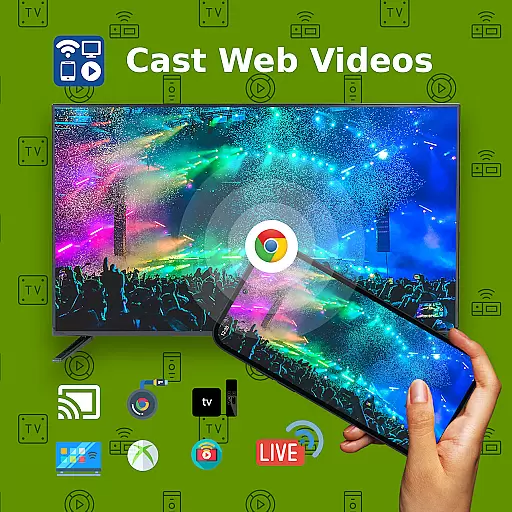
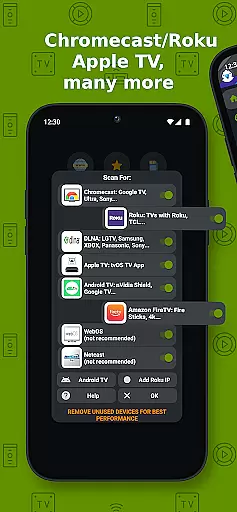
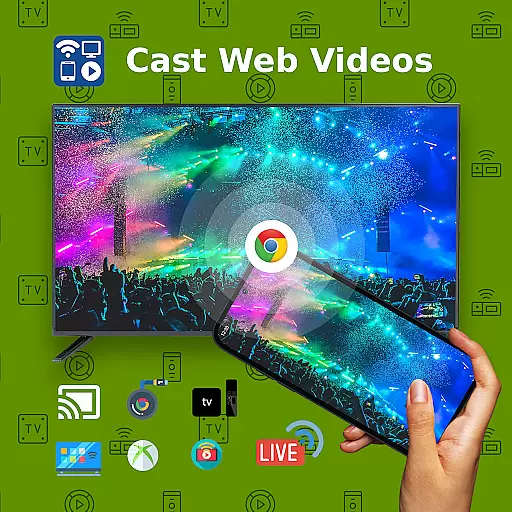
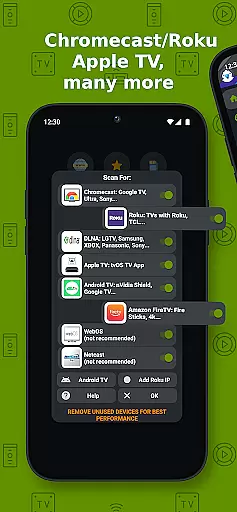
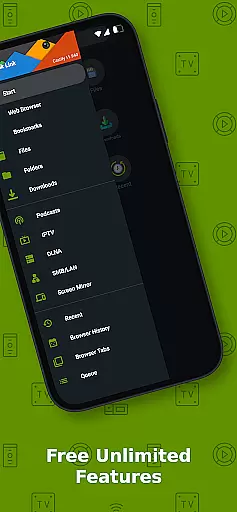
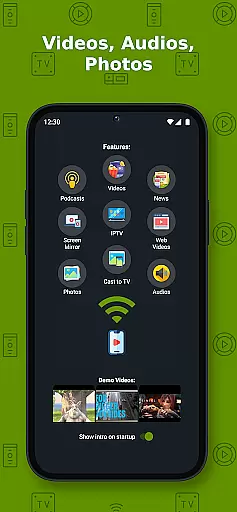
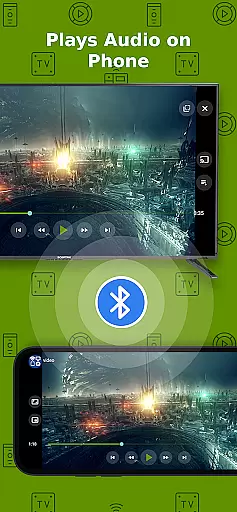
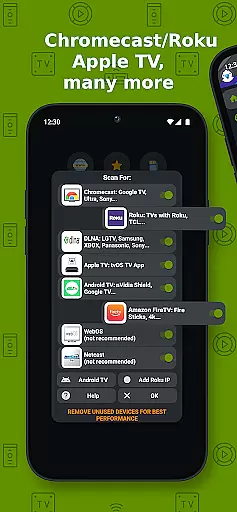
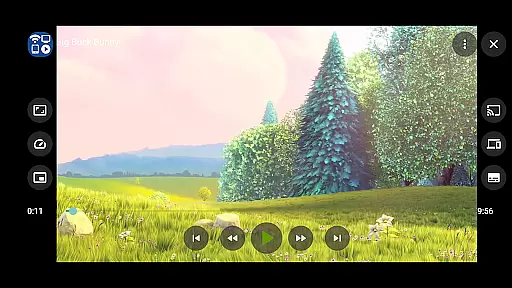
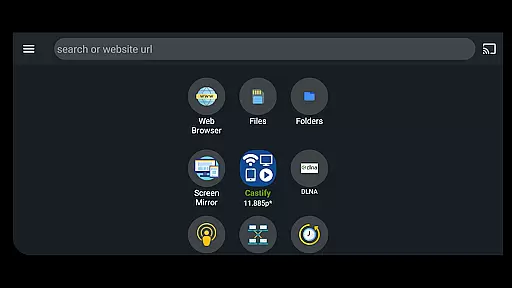
Cast to TV+ Chromecast Roku TV is a versatile streaming application that allows users to cast videos, music, photos, and other media content from their mobile devices to various streaming devices. The app supports a wide range of devices including Chromecast, Roku, Fire TV, DLNA receivers, Xbox consoles, and smart TVs from brands like LG, TCL, Phillips, Sony Bravia, Samsung, Sharp, Panasonic, and more.
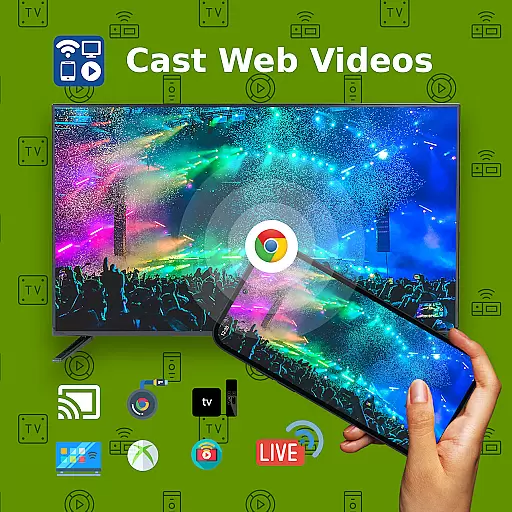
One of the standout features of this app is its ability to cast web videos found online from websites, making it an excellent tool for users who want to enjoy content on a larger screen. Additionally, the app offers AI Subtitle Generate and AI Subtitle Translation, enhancing accessibility for users who require subtitles in different languages. With functionalities such as Screen Mirroring, IPTV support, and Universal Remote Controls, this app provides a comprehensive solution for all your casting needs.
This app is particularly useful for users who frequently stream content at home or in the office. Whether you're looking to share photos during a family gathering or present a video during a business meeting, Cast to TV+ Chromecast Roku TV ensures seamless connectivity and high-quality streaming across multiple devices.
Cast to TV+ Chromecast Roku TV boasts an impressive array of features designed to enhance the user's streaming experience. One of the key highlights is the AI Subtitle Generate and AI Subtitle Translation feature, which automatically creates and translates subtitles for any given video, making content accessible to a broader audience. This functionality is especially beneficial for users who are hard of hearing or prefer watching videos with subtitles in a different language.
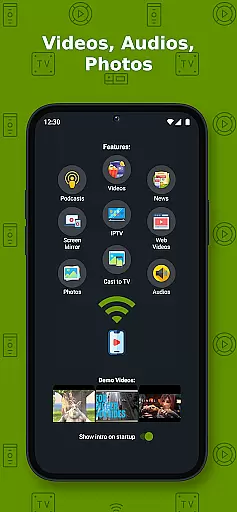
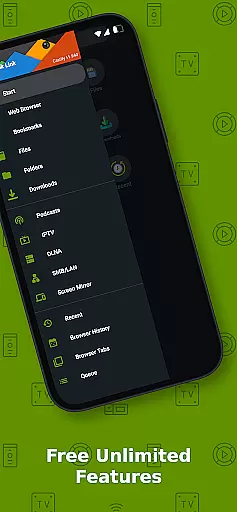
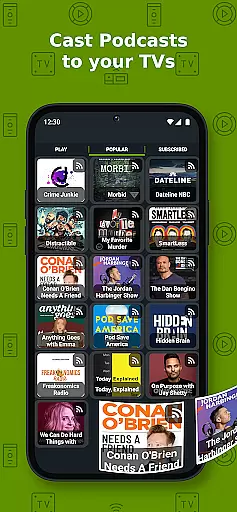
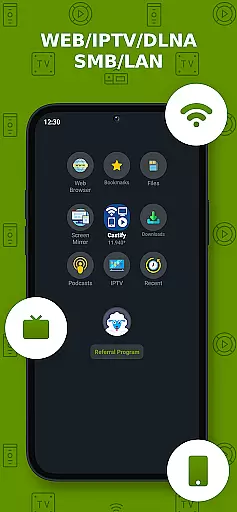
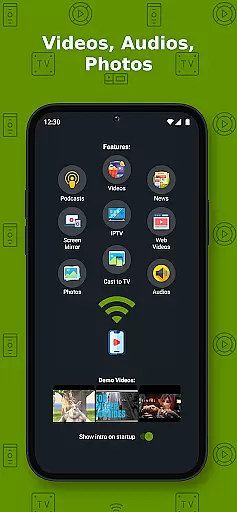
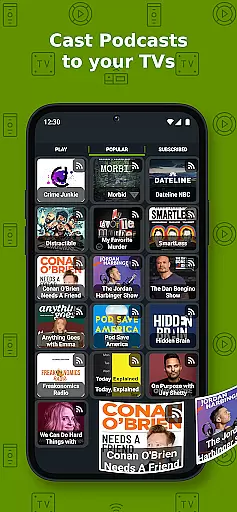
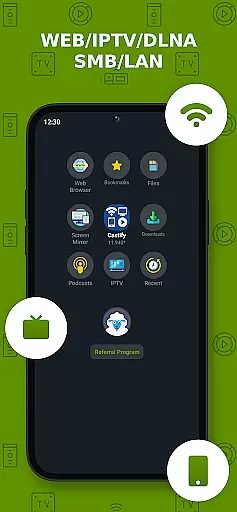
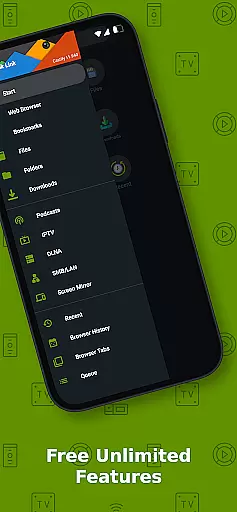
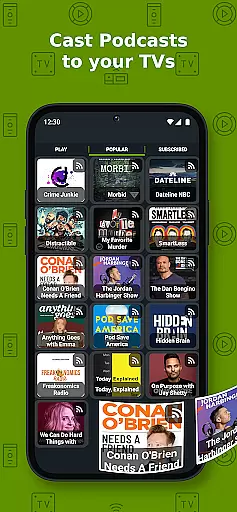
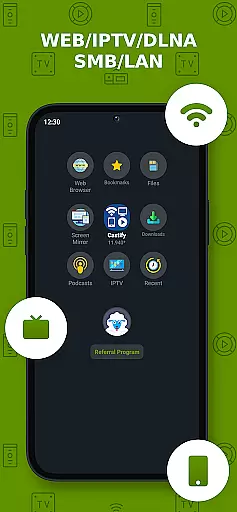
The app also supports casting from various sources, including phone files, browser websites, IPTV, podcasts, and DLNA servers. Users can stream local files from their phones to Chromecast, Roku, Xbox, DLNA, and even web browsers like Chrome and Firefox. Additionally, the app includes advanced features such as Popup Blocker, Picture in Picture (PiP), and Roku Channel TV App, providing a rich and customizable viewing experience.
Another notable feature is the Universal Remote Controls for Roku, Android TV, Samsung, LGTV, and FireTV, allowing users to control their streaming devices directly from the app. The app also supports Screen Mirroring on newer Android devices, enabling users to mirror their phone screens onto a larger display. With support for various formats including MP4, MKV, MP3, JPG, PNG, HTML5 video, HLS Live Streaming, and IPTV m3u files, Cast to TV+ Chromecast Roku TV caters to a wide range of media needs.
Video format compatibility is a crucial feature for any video player and editor, ensuring that users can enjoy a wide range of content without technical barriers. Cast to TV+ Chromecast Roku TV supports an extensive array of formats including MP4, MKV, MP3, JPG, PNG, HTML5 video, HLS Live Streaming, and IPTV m3u files or URLs. This broad compatibility allows users to stream 4K and HD videos where available, directly to their preferred devices.
The app facilitates casting from websites using public formats, but proprietary video and movie formats are not supported. This ensures that most standard online content can be enjoyed on larger screens such as TVs connected via Chromecast, Roku, Xbox, DLNA, or even web browsers like Chrome and Firefox. However, it's important to note that some streaming receivers may have limitations; for example, Fire TV does not support certain video movie formats, and Apple TV AirPlay has restrictions on local casting of audio and photos.
By supporting popular formats and providing clear guidelines on compatibility, this application empowers users to make the most out of their multimedia libraries. Whether you're looking to cast personal media collections or online streams, the app's versatile format handling ensures a seamless experience across different platforms and devices.
AI-powered editing features represent a significant advancement in video players and editors, offering users tools that enhance both productivity and creativity. Cast to TV+ Chromecast Roku TV incorporates AI-driven functionalities such as AI Subtitle Generate and AI Subtitle Translation. These features allow users to create subtitles for any given video and translate SRT subtitles into different languages, making content more accessible and enjoyable for diverse audiences.
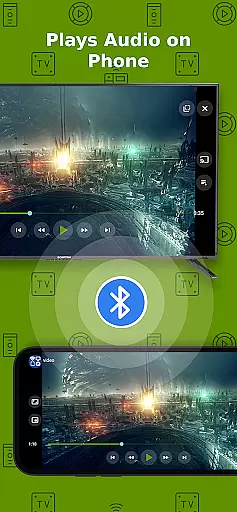
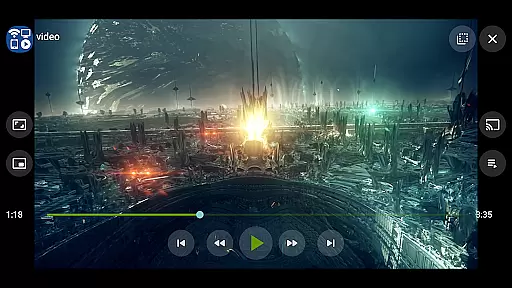
In addition to subtitle management, the app provides innovative options like Picture in Picture (PiP), which enables multitasking while watching videos. The inclusion of universal remote controls for various devices including Roku, Android TV, Samsung, LGTV, and FireTV further enhances user convenience. Such capabilities ensure that viewers have complete control over their playback experience, whether they're streaming from local files or online sources.
These intelligent editing tools not only simplify complex tasks but also open up new possibilities for personalized content consumption. By leveraging artificial intelligence, Cast to TV+ Chromecast Roku TV sets itself apart as a forward-thinking solution in the realm of video players and editors, catering to both casual viewers and tech-savvy enthusiasts who demand flexibility and precision in their digital entertainment experiences.
User-friendly interface
Wide device compatibility
AI subtitle generation
Comprehensive remote controls
Supports multiple formats
Limited AirPlay support
Some format restrictions
Dependent on network stability
No local hosting of content
Possible connectivity issues
Client application for NextPVR software
 3.00
3.00
HD Video player all format, HD Videos, Cast & Subtitle. No annoying ads.
4.60
Your media, on your terms.
4.10
Photo and Music Video Creator into Stunning Videos—Effortlessly
4.40
Snaptubè Video Downloader app allows to download videos and music in Snaptube. .
4.60
Play ALL formats in 4K & HD. Video downloader, MP3 player, Chromecast & more.
4.80
High-Quality USB Camera Viewer & HDMI Display
4.70
AirMirror Receiver - Screen mirroring/cast web videos to Android TV by AirPlay.
4.40
Video&Drama Player All Format is a HD video player, music player
3.00
Download Hub, easy and private way to download and enjoy your videos offline
4.80
All in one HD video downloader & player for multiple formats with full privacy
4.70
Cast to Chromecast, Xbox, Fire Stick, Roku, DLNA, Smart TV & No Feature Limited!
4.50
Full HD Video mp3 Player, MP4 player play 1080p, File manager, Video Downloader
4.40
Browser for Fire TV to stream webvideos, online movies, livestreams in HD
4.40
KMPlayer Plus (Divx Codec) officially support Divx codec.
4.30
Turn your phone into a wireless camera!
4.20
Powerful video player with advanced hardware acceleration and subtitle supports
4.20
Connect EasyCap or UVC devices for recording and broadcast video/audio stream
3.60
This app is an emulator of some specific IPTV boxes
3.50


User Reviews